
How to Make an Alors on Danse Video from Two Photos
A practical walkthrough of photo preparation, casting, formats, credits and reviewing your AI studio video before sharing.
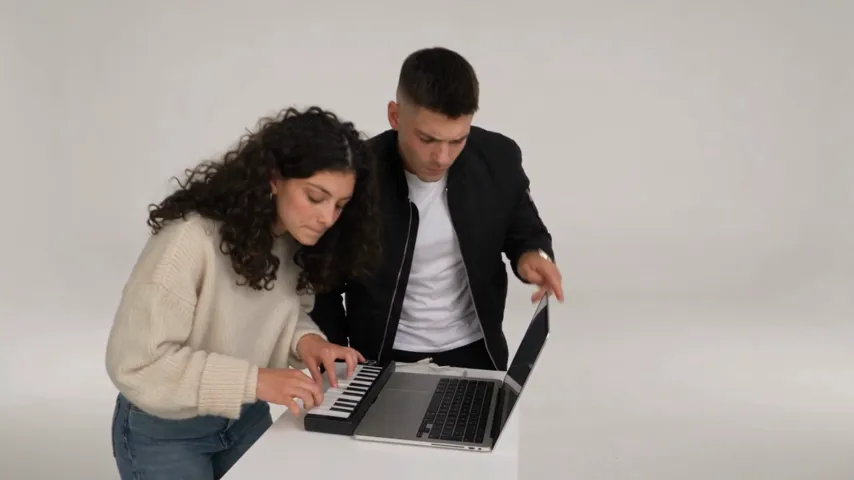
The short version: upload two clear photos, choose who appears on the keys and who hypes the room, select a format, then generate with 20 credits. The studio reference supplies the movement and camera sequence; your photos supply the identities.
This walkthrough describes the controls currently available in Alors on Danse AI. It is product documentation, not a promise that every generation has identical likeness, motion or music.
1. Preview the studio template
Watch the reference below before uploading. It is the source performance used to guide generation, not a personalized customer result. Check that this is the scene you want; uploading a photo does not let you choose a different background or choreography.
2. Prepare one subject in each photo
Use a JPG, PNG or WebP, up to 10 MB per photo. Pick a sharp image with an unobstructed face, even lighting and enough space around the head. Waist-up or full-body photos can give the model useful clothing and body information. Do not upload someone else's image without permission.
Avoid group photos, tiny faces, sunglasses hiding the eyes, heavy beauty filters and motion blur. The model generates missing detail; a headshot cannot guarantee an exact full-body outfit.
3. Assign the two roles
The first slot is the performer on the keys; the second is the hype performer. Check each preview before generating. Select Person for human photos. Pet sends animal-specific instructions for that slot, but pet casting is experimental: species details, anatomy and upright movement may vary.
A person/pet combination is supported as an input choice. It is not a guarantee that an animal will behave or look exactly as you imagined.
4. Choose landscape or fitted portrait
- 16:9 Landscape: uses the wide studio reference.
- 9:16 Portrait: uses a vertical version of the reference, fitting the studio scene inside the frame with background padding so the two performers remain visible.
Portrait does not mean that every shot becomes a new full-height close-up. The delivery flow checks the selected aspect ratio, resolution and approximate 20-second duration before marking a new result complete; an unusable output follows the failed-task credit-return process.
5. Sign in, check credits and generate
Each video costs 20 credits. Check current pricing before purchasing: monthly subscriptions grant credits monthly, annual subscriptions grant a full year upfront, and one-time packs do not renew. Credits do not expire. Annual cards show the full annual payment as well as the monthly equivalent.
Processing time varies with the provider queue. You can return to History after submitting; avoid repeatedly starting the same request because you cannot see an immediate result.
6. Review before downloading or sharing
Watch the entire result with sound. Check that the identities stay assigned to the correct roles, faces remain recognizable through the close-up, and hands and clothing are acceptable. Audio is generated from the reference guidance; an exact copy of the original recording is not guaranteed.
Download the completed MP4 from the result card or History. A failed generation task returns credits, which is different from an automatic cash refund. If the balance or task state looks wrong, contact support with the task reference, never your password.
If something looks wrong
A blurry or obstructed input is a useful first thing to fix. For identity drift, try a sharper photo with consistent lighting. If the task fails, check its error and returned credits before retrying. New source photos can be viewed or deleted in Photo privacy; deleting an input does not remove a video already generated from it.
For the terminology, read what an Alors on Danse video is. If you found the scene by its sound, see the Kong Kong King King King template guide.